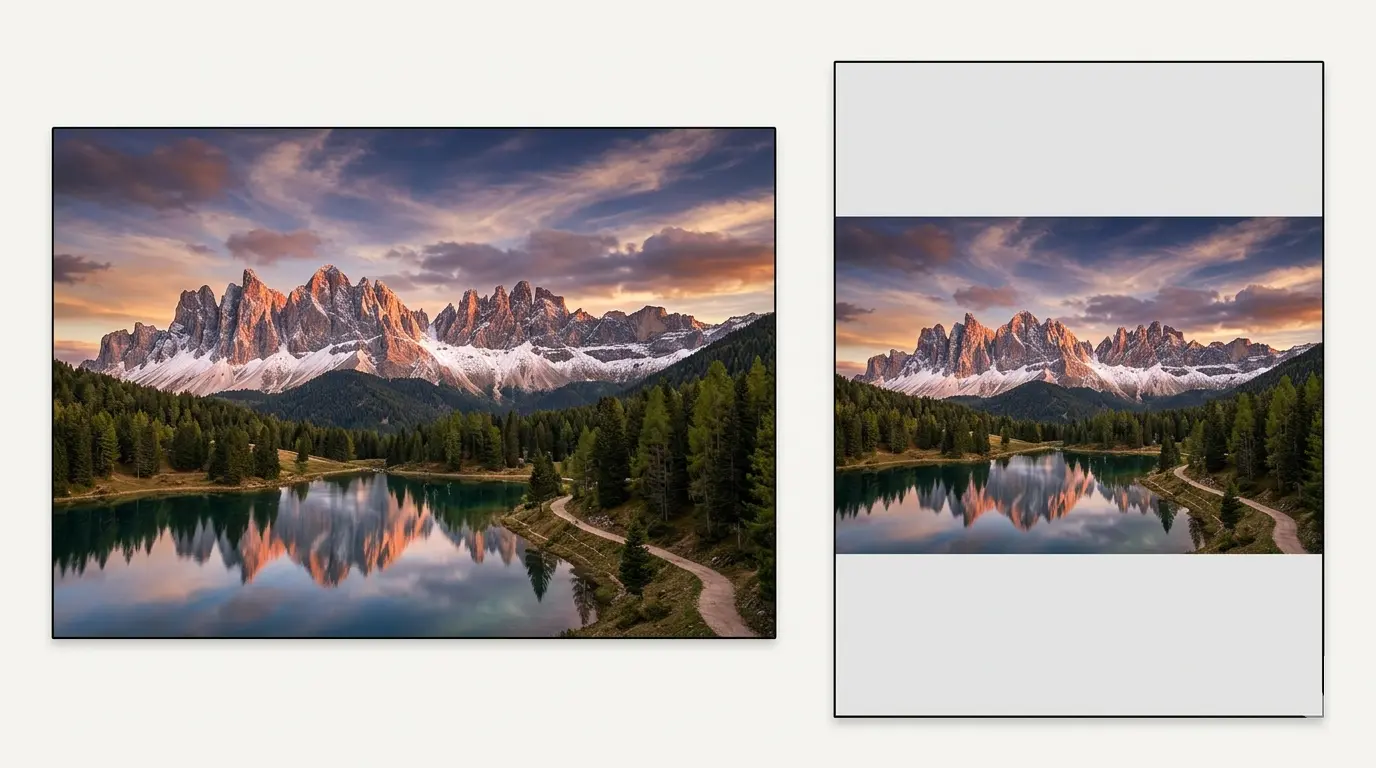
Instagram enforces strict aspect ratio limits on feed posts. A standard 3:2 DSLR shot, a 16:9 screenshot, or any ultra-wide panorama gets automatically cropped or compressed when posted—unless you prepare the image first.
This guide covers four methods to post landscape photos on Instagram without losing any part of the original composition. For a full breakdown of every Instagram dimension, see the Instagram image sizes 2026 guide.
TL;DR: Add smart padding — borders that fill the space between your photo and Instagram's 4:5 or 1:1 target format. Your full landscape image stays visible. AspectFit does this in-browser with no upload required.
On this page:
- Why Instagram crops landscape photos
- Method 1: Add smart padding
- Method 2: Instagram's built-in resize button
- Method 3: Split into a carousel
- Method 4: AI background extension
- Comparison
- Best practices
- Frequently asked questions
Why Instagram crops landscape photos
Instagram's feed enforces these limits:
- Portrait maximum: 4:5 (1080 × 1350 pixels)
- Landscape maximum: 1.91:1 (1080 × 566 pixels)
Photos wider than 1.91:1 get cropped or compressed. Standard 3:2 photos from a DSLR or phone fit within the landscape limit, but appear significantly shorter in the feed than a portrait post. Ultra-wide panoramas (2.35:1, 3:1, etc.) exceed the limit entirely and are the most likely to get cropped.
Method 1: Add smart padding (recommended)
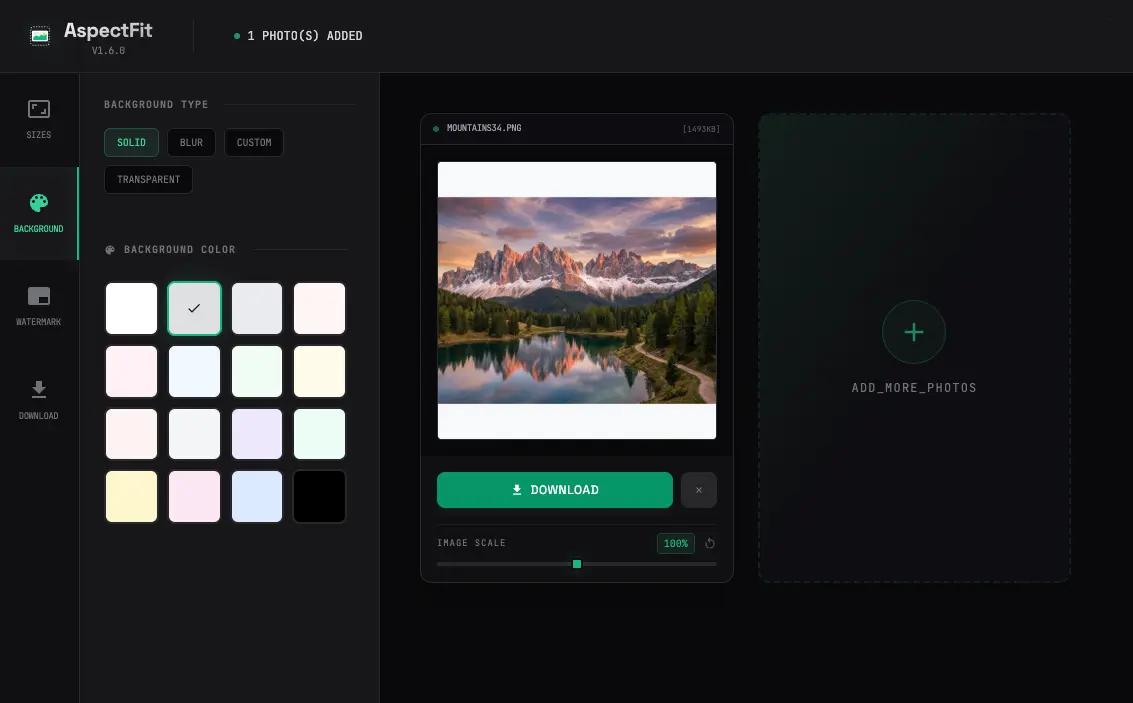
Adding padding around your landscape photo converts it to a square or portrait format Instagram accepts—without removing any part of the original image. The photo is visible in full, with letterboxing filling the remaining space.
Steps:
- Open AspectFit — no upload required, all processing happens in your browser
- Drop in your landscape photo
- Select target format: 4:5 (portrait, maximum feed visibility) or 1:1 (square)
- Choose a padding style
- Download and post
Padding options:
- White borders: Clean, minimal — works with most content
- Black borders: Cinematic — matches dark or moody shots well
- Blurred background: The original image blurred out as the backdrop — keeps attention on the main photo
- Custom color: Match your brand palette or the photo's dominant tone
This is the preferred approach for photographers who want exact control over the final result.
Method 2: Use Instagram's built-in resize button
Instagram added a resize button in late 2024. It handles minor adjustments without leaving the app.
Steps:
- Create a new post and select your landscape photo
- Tap the resize icon (two outward arrows) in the bottom-left corner of the preview
- Pinch to zoom and drag to reposition
Limitations:
- Adds automatic black or white bars — no customization
- May still crop very wide images
- Doesn't work for Stories or Reels
- Less control over the final composition
Use this for quick fixes on photos that are only slightly outside Instagram's ratios.
Method 3: Split into a carousel
Slice the landscape image into two or three overlapping sections and post them as a carousel. Viewers swipe through to see the full width — a more engaging format for panoramas. The full method, including which slide size to use, is in how to split a photo into an Instagram carousel; for ultra-wide stitches, see how to post a panorama as an Instagram carousel.
Steps:
- Split the panorama into 2–3 sections with AspectFit's Split Canvas, or a tool like PineTools or PhotoSplit
- Keep each section the same aspect ratio (4:5 or 1:1) — Instagram locks every slide to the first one's ratio (see the Instagram carousel image sizes guide)
- Post as a carousel in order
When to use it:
- Ultra-wide panoramas that would look too compressed even with padding (see how to post panorama photos on Instagram)
- When the wide format itself is part of the story
- For higher swipe engagement
Method 4: AI background extension
AI tools can generate content to fill the space above and below a landscape photo, converting it to portrait format. Results vary significantly.
Trade-offs:
- Generated backgrounds can look inconsistent with the original image
- Not suitable for professional photography
- Works better for casual social content where a seamless result isn't critical
For professional or brand content, Method 1 produces cleaner, more predictable results.
Comparison
| Method | Preserves full image | Customization | Best for |
|---|---|---|---|
| Smart padding | Yes | Full | Photography, brand content |
| Instagram resize | Partial | None | Minor ratio adjustments |
| Carousel split | Yes (per slide) | Moderate | Panoramas |
| AI extension | Mostly | Low | Casual content |
Example: 3:2 to Instagram-ready
A 3000 × 2000 pixel DSLR photo (3:2 ratio) prepared for Instagram using smart padding:
- Target format: 4:5 (1080 × 1350) — maximum feed visibility
- AspectFit adds padding to the top and bottom
- Result: 1080 × 1350 image, full original photo visible, professional padding filling the borders
- Post — composition intact
Best practices
- Use 4:5 portrait over 1:1 — portrait posts take up roughly 35% more vertical feed space than square, which directly increases scroll visibility (Buffer, 2026)
- Keep important elements away from the very edges — slight resampling can occur at the border
- Test the final image on a mobile screen before posting — most viewers are on phones
- For Stories and Reels, the required format is 9:16 (1080 × 1920) — the methods above apply equally
- Review Instagram's official post sizing guidance when platform specs change
Frequently asked questions
Does Instagram crop 3:2 landscape photos?
Instagram's landscape limit is 1.91:1. A 3:2 photo (ratio 1.5:1) fits within that limit and won't be forcibly cropped. However, it displays significantly shorter in the feed than a 4:5 portrait post, which reduces visibility. Adding smart padding to 4:5 before posting gives your photo maximum feed presence.
What's the best format for landscape photos on Instagram in 2026?
4:5 portrait (1080 × 1350 pixels) using smart padding. This preserves your full composition and gives the post roughly 35% more vertical feed space than a square — which increases scroll visibility and engagement (Buffer, 2026).
Will adding padding reduce image quality?
No. Smart padding adds space around your original image without resampling it. Tools like AspectFit use HTML5 Canvas and export at your source resolution, so the original photo area is pixel-perfect in the final file.
Can I post a 16:9 photo on Instagram without cropping?
Yes. A 16:9 photo (ratio 1.78:1) is narrower than Instagram's 1.91:1 landscape limit, so it won't be cropped. Adding top-and-bottom padding to reach 4:5 or 1:1 before posting gives the image significantly more feed visibility than posting it as a narrow landscape strip.
Does the carousel method work for panoramas?
Yes — splitting a panorama into 2–3 sequential carousel slides is the best approach for very wide images (2.35:1 or wider). Each slide maintains full resolution and the swipe interaction tends to increase engagement compared to a single padded post.
Summary
Instagram's cropping is a result of enforced aspect ratio limits, not a flaw in your photo. Preparing the image before uploading — specifically by adding smart padding — keeps your full composition intact while fitting Instagram's requirements.
For exact dimensions across all Instagram formats, see the complete Instagram image sizes guide. To understand which photos are most affected and why, see why Instagram crops photos and how to fix it.
AspectFit handles the padding step — 100% client-side, no server upload, free to use.