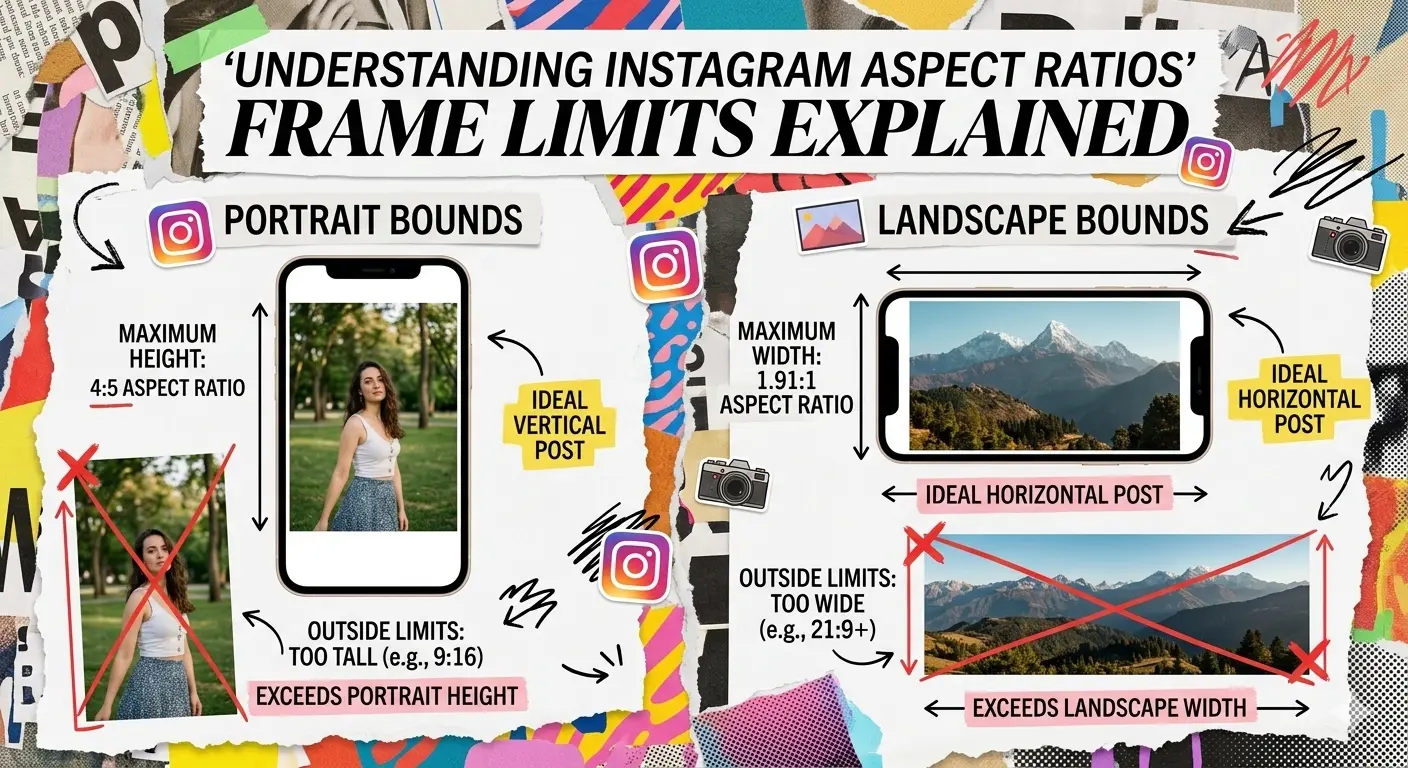
Instagram enforces aspect ratio limits on all feed posts. Photos outside those limits get automatically cropped or compressed — by the platform, not by you.
Understanding exactly which photos are affected, and why, makes it straightforward to prevent. For a full reference of every supported Instagram dimension, see the Instagram image sizes 2026 guide.
TL;DR: Instagram crops photos that exceed its aspect ratio limits — portrait maximum 4:5 (1080 × 1350), landscape maximum 1.91:1 (1080 × 566). The fix is to add smart padding before uploading, keeping your full image intact with no composition loss.
On this page:
- Why Instagram crops photos
- What actually gets affected
- How Instagram handles out-of-range photos
- How to fix it: resize before uploading
- Cropping vs. smart padding
- When to use each approach
- Frequently asked questions
Why Instagram crops photos
Instagram's feed is a vertical, mobile-first scroll. To keep it consistent across devices, the platform enforces hard limits on how tall or wide a post can be. According to Instagram's official help documentation, the supported aspect ratio range for feed posts is:
Instagram's aspect ratio limits (2026)
| Orientation | Maximum ratio | Maximum dimensions |
|---|---|---|
| Portrait | 4:5 | 1080 × 1350 pixels |
| Landscape | 1.91:1 | 1080 × 566 pixels |
Anything outside these ranges gets cropped or compressed.
Why these limits exist
- Feed consistency — uniform content shapes the grid more cleanly
- Mobile optimization — vertical content fills phone screens better
- Engagement — 4:5 posts occupy more screen space = more visibility
- Rendering — consistent ratios are simpler to render across all devices
What actually gets affected
Not every photo gets cropped. Here's the breakdown by ratio:
- Ultra-wide panoramas (2.35:1, 3:1+): Exceed the landscape limit. Get severely cropped or compressed to a small strip.
- Portrait photos taller than 4:5 (e.g. 2:3): Exceed the portrait limit. Get cropped from the sides.
- 3:4 photos (common on newer phones): Natively supported since Instagram's May 2025 update — no longer cropped.
- 3:2, 4:3, and 16:9 landscape photos: Fit within Instagram's 1.91:1 landscape limit. They don't get forcibly cropped, but they appear significantly shorter in the feed than a 4:5 portrait post.
The most common real-world problem: photographers posting 3:2 DSLR shots in landscape orientation. The image isn't cropped — but it's displayed very small compared to a portrait post, which reduces feed visibility.
How Instagram handles out-of-range photos
Automatic cropping
Instagram fits the image into the nearest supported ratio and cuts off the excess. The platform decides what to crop — usually from the edges.
Forced compression
Very wide or tall images get compressed into a smaller display area in the feed.
The resize button (added 2024)
Instagram's built-in resize button lets you drag and reposition before posting — but it adds automatic solid-color bars with no customization, and still crops images that are significantly outside the limits.
Profile grid change (2025)
Instagram's profile grid now previews posts in a 3:4 shape. For 4:5 posts, the left and right sides are slightly trimmed in the grid thumbnail — not the top and bottom. Feed display is unaffected.
How to fix it: resize before uploading
The only reliable way to ensure your full photo appears in the feed is to prepare it before uploading. The approach: add padding to reach a supported aspect ratio, keeping your entire original image intact. Any of the free no-upload Instagram resizers can do this; the steps below apply to all of them.
Step-by-step
- Identify your photo's current ratio
- 3:2 — standard DSLR or mirrorless
- 4:3 — compact cameras, older phones
- 16:9 — screenshots, cinematic
- 2.35:1 — anamorphic
- Choose a target Instagram format
- 4:5 (1080 × 1350) — best engagement, maximum feed visibility, safest choice (see best aspect ratio for Instagram posts in 2026)
- 1:1 (1080 × 1080) — square, consistent with the classic grid look
- 3:4 (1080 × 1440) — officially supported since May 2025; a good fit if your originals are already in this ratio
- Add padding to fit
- Landscape photo → add padding to the top and bottom
- Portrait photo beyond 4:5 → add padding to the sides
- This preserves 100% of the original image
- Preview on mobile before posting
For the full step-by-step on posting landscape photos specifically, see how to post landscape photos on Instagram without cropping.
Cropping vs. smart padding
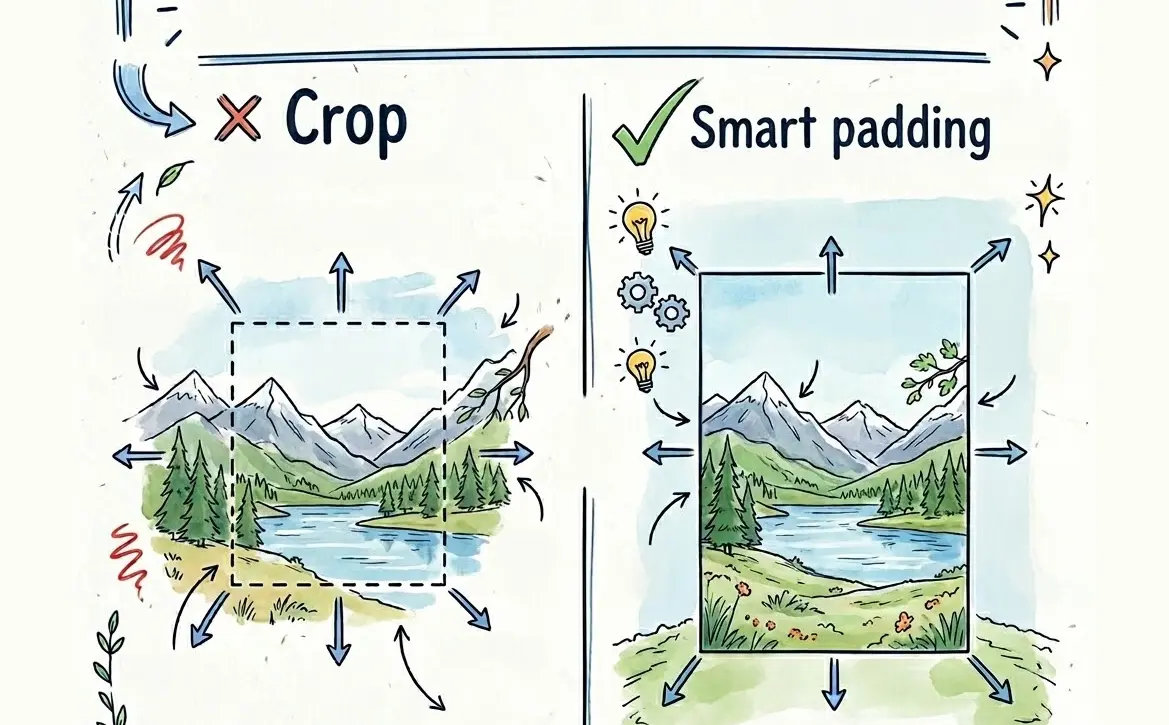
Cropping removes part of your image. Smart padding adds borders around it, keeping everything visible.
| Factor | Cropping | Smart padding |
|---|---|---|
| Image preserved | Partial | 100% |
| Composition control | Limited | Full |
| Final look | Composition changed | Original + borders |
| Effort | Immediate | Minimal (tool handles it) |
Padding options: solid white, solid black, blurred background, or a custom color. The blurred background approach uses the original image itself as a backdrop — seamless result with no visible borders. Each style is compared in how to add borders to Instagram photos.
When to use each approach
Smart padding: Preserving the full composition matters. Any professional or brand content. Photos with important elements near the edges.
Instagram's resize button: You need a quick fix and the photo is only slightly outside the ratio. Casual posts where composition precision isn't critical.
Carousel split: Ultra-wide panoramas that would look too compressed as a single padded image. Higher engagement through swipe interaction.
Cropping: You're making a deliberate creative choice and the cropped version works on its own.
Common questions
Can't I just use Instagram's resize button?
You can, but it adds solid-color bars automatically with no customization, may still crop very wide photos, and doesn't work for Stories. For full control, prepare the image before uploading.
Will white borders look unprofessional?
White borders are a common intentional aesthetic used by many photographers and brands — it's a clean, minimal look. Blurred background padding is the alternative if you want no visible border at all.
What's the best aspect ratio for Instagram posts in 2026?
4:5 portrait (1080 × 1350). It occupies significantly more screen space in the feed than square or landscape posts, which increases visibility and engagement.
Frequently asked questions
Why does Instagram crop my photos automatically?
Instagram enforces aspect ratio limits on all feed posts — portrait maximum 4:5 and landscape maximum 1.91:1. Any photo outside these bounds is automatically cropped or compressed to fit. The platform doesn't ask; it applies cropping at upload time based on the image dimensions.
Does Instagram crop 3:2 photos?
Not forcibly. A 3:2 photo (1.5:1) fits within Instagram's 1.91:1 landscape limit and won't be cropped. However, it appears significantly shorter in the feed than a 4:5 portrait post. Adding smart padding to reach 4:5 before posting gives the image roughly 35% more vertical feed space and better visibility.
What is the maximum aspect ratio for Instagram posts?
The limits are 4:5 for portrait (tallest allowed) and 1.91:1 for landscape (widest allowed). Square 1:1 falls within both. Photos taller than 4:5 or wider than 1.91:1 will be cropped or compressed by Instagram on upload.
How do I stop Instagram from cropping my photos?
Resize the photo before uploading. Add smart padding to bring it within Instagram's accepted ratios — 4:5 or 1:1 are the safest targets. AspectFit handles this in-browser with no server upload required.
Will padding borders look bad on Instagram?
Not when done intentionally. White borders are a widely used aesthetic among photographers and brands — clean and minimal. Blurred background padding uses the original image as a backdrop with no visible border. Both are common professional choices.
Summary
Instagram crops photos that fall outside its aspect ratio limits — portrait maximum 4:5, landscape maximum 1.91:1. The fix is to prepare images before uploading by adding smart padding, which keeps the full original composition visible.
Cropping is one half of "Instagram wrecked my photo." The other half is softness, blocky skies and dull colour, which comes from how Instagram resizes and recompresses your file. That side is covered in why Instagram ruins your photo quality.
AspectFit's Instagram image resizer handles padding in-browser — no server upload, free to use.