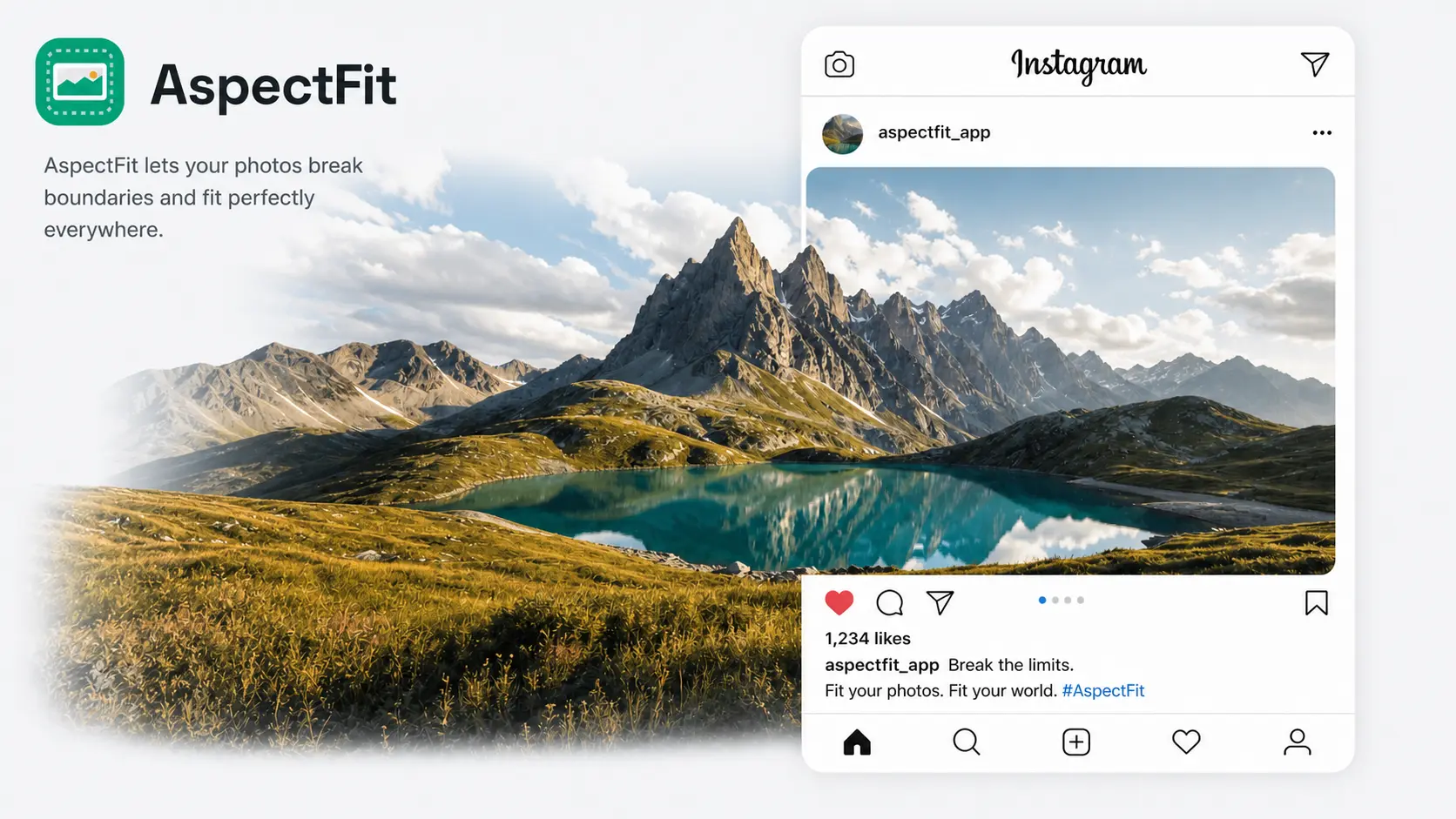
A split carousel is one photograph cut into sequential slides. With two panels, slide 1 holds the left portion and slide 2 holds the right; a third panel adds a middle slide. The swipe moves the viewer across the frame the way a pan moves a camera. Instagram treats it as an ordinary carousel post, which is the entire trick - the platform never knows the slides came from one file.
This guide covers the slide dimensions, the two methods for producing the slices, the upload sequence that keeps them in order, and the failure modes that make a split look broken. For every Instagram dimension outside carousels, see the Instagram image sizes 2026 guide.
TL;DR: Render your photo onto a canvas 2× (or 3×) the width of your target slide, then cut it into equal panels. Each panel becomes a slide. Upload left to right. AspectFit does this with a Split toggle - 2 or 3 panels, in-browser, no upload - and the whole photo survives instead of getting cropped to fit the tiles.
On this page:
- Why creators split photos into carousels
- Two ways to split a photo
- Slide dimensions for a split carousel
- How to split a photo with AspectFit
- Uploading the slides in the right order
- Why two or three slides, not more
- What makes a split look broken
- Frequently asked questions
Why creators split photos into carousels
Two reasons, one aesthetic and one mechanical.
The aesthetic one: a wide photo posted as a single landscape frame occupies about 44% of the vertical feed height that a 4:5 portrait post gets. Split across two portrait slides, the same photograph runs at full portrait height twice. The composition stays wide; the feed presence doubles.
The mechanical one is format performance. Socialinsider's 2026 Instagram benchmarks put carousel engagement at roughly 0.55% against 0.35–0.37% for single images. Metricool's 2026 study of the platform found single-image posts down 45.98% in engagement year over year, the weakest of the three main formats. Splitting one photo is the cheapest way to change format without shooting anything new.
Neither reason requires the photo to be a panorama. A standard landscape frame works.
Two ways to split a photo
The distinction matters more than any tool choice, because it decides whether you keep your whole photograph.
Crop and slice
The generic approach, and what most online carousel splitters do. The tool assumes your source is already the right shape - for a two-slide 4:5 carousel, that means exactly 1.6:1 - and cuts it into equal tiles. Anything that doesn't match the target ratio gets trimmed off the top and bottom first.
This is fine when your photo happens to be the right proportion. When it isn't, you lose the sky or the foreground without being asked.
Fit and split
The photo is placed inside a canvas twice the slide width, scaled to fit rather than to fill, and the remaining space becomes background. Then the canvas is cut. Nothing is trimmed. A 2.5:1 panorama and a 3:2 landscape both survive; they just carry different amounts of padding.
| Crop and slice | Fit and split | |
|---|---|---|
| Source ratio must match target | Yes | No |
| Composition preserved | Only within the crop | Fully |
| Padding | None | Blurred, solid, or transparent |
| Works for a 4:1 panorama | Slices are usable, edges lost to the crop | Yes, with visible padding |
| Typical tool | Grid splitters, tile makers | AspectFit Split Canvas |
Fit-and-split is the same principle as smart padding for landscape photos, applied to a canvas that is two slides wide instead of one.
Slide dimensions for a split carousel
Instagram's carousel rules apply unchanged: 2 to 20 slides, 8 MB per slide, and every slide displays at the aspect ratio set by the first one. A split carousel produces slides that are identical in ratio by construction, so the second rule takes care of itself. The Instagram carousel image sizes guide covers those rules in full, including what happens when slides don't match.
What varies is the shape of the combined canvas, which is what your photo actually gets fitted into. Double the slide width and the ratio changes:
| Slide format | Slide ratio | Combined canvas (2 slides) | Fills edge to edge with |
|---|---|---|---|
| Post Portrait II | 3:4 | 3:2 | Standard camera and phone landscape shots |
| Post Portrait | 4:5 | 1.6:1 | Anything between 3:2 and 16:9 |
| Post Square | 1:1 | 2:1 | Stitched and phone panoramas |
Which leads to a useful coincidence: a stock 3:2 photo out of any camera fills a two-slide 3:4 carousel exactly, with zero padding. Same for a 2:1 panorama on square slides. Match your source ratio to the combined canvas and fit-and-split gives you a full-bleed carousel with no cropping anywhere in the chain.
A 16:9 frame (1.78:1) sits between the 1.6:1 and 2:1 canvases. On 4:5 slides it fills the width and takes a thin band of padding top and bottom; on square slides it fills the height with padding at the sides.
The same geometry extends to 3 panels - triple the slide width instead of doubling it. Post Portrait II (3:4) forms a 2.25:1 canvas, Post Portrait (4:5) forms 2.4:1, and Post Square (1:1) forms 3:1 - the widest combined canvas Split Canvas can produce, suited to ultra-wide panoramas and multi-shot sequences that don't fit cleanly on two slides.
Instagram's 9:16 Story and Reels formats are not part of this. A vertical canvas doubled in width becomes a landscape canvas, which defeats the point.
How to split a photo with AspectFit

Split Canvas renders the full pipeline once across the double-width canvas, then slices down the middle.
Before you start: use the highest-resolution copy of the photo you have. The combined canvas is twice as wide as a normal export, so the source is spread across twice the pixels. A 12 MP file is comfortable; a screenshot is not.
Step 1. Open AspectFit and drop the photo in. Processing runs in your browser through HTML5 Canvas - the file is never sent anywhere.
Step 2. Pick the slide format in the Aspect tab: Post Square (1:1), Post Portrait (4:5), or Post Portrait II (3:4). Use the table above to match it to your photo's ratio.
Step 3. Turn on the Split toggle on the image card, then choose 2 or 3 panels. The preview switches to the multi-slide layout with a seam line marking each cut.
Step 4. Set the background in the Background tab. Blurred works for most photographs because it keeps the color palette continuous. White and black read as a deliberate frame. If your photo already fills the canvas edge to edge, the background never shows.
Step 5. Click Edit Split Layout to open the positioning editor. A new split opens already scaled to span the full canvas width - no side padding to dial out by hand. Drag the photo anywhere on the canvas to reposition it, and use the scale slider (10% up to at least panels × 100%, higher for tall photos) to adjust. What the preview shows is what exports - push the image past the canvas edge and the overflow is clipped, not squeezed. Recenter puts the image back in the middle; Fit Width returns the scale to the automatic fit. Changing the panel count keeps your framing instead of resetting it.
Step 6. Add a border or watermark if you use them. Both are applied once across the whole canvas before the cut, so the watermark lands where you placed it instead of duplicating onto every slide, and the border frames the set instead of each slide individually.
Step 7. Download. You get one file per panel - bundled as a ZIP - named -left/-right for 2 panels or -1/-2/-3 for 3, sorted into carousel order.
Export resolution comes from your source file, not a fixed 1080 px ceiling, so a large original stays sharp on both halves.
Uploading the slides in the right order
Instagram does not sort by filename. The order you tap the files in the picker is the order they post in, and a reversed split just reads as an error.
- Create a new post and select left first, then right.
- Check the thumbnail strip at the bottom of the editor before continuing. Left should be position 1.
- In the crop step, choose the option that shows the whole frame. Instagram will otherwise apply its own crop on top of yours and knock the two halves out of alignment.
- Skip filters. Instagram applies filters per slide, and any adjustment that shifts exposure or contrast will make the seam visible.
If a posted carousel comes out reversed, the reliable fix is to delete and repost. Slide replacement after publishing is limited and inconsistent across regions.
Why two or three slides, not more
Splitting into more slides is technically easy and usually wrong.
Each additional cut divides the same photograph into narrower strips. At four slides on a 4:5 format, the combined canvas is 3.2:1 - wider than most photographs - so a normal frame arrives with heavy padding on both sides, and each individual slide holds a quarter of a scene that was composed as a whole. The middle slides tend to hold no subject at all.
Two slides keeps a payoff on the swipe: slide 1 establishes, slide 2 resolves. It also matches how far most people actually swipe - the drop-off between the first and second slide is the smallest gap in any carousel. A third slide earns its place when the source is wide enough to need it - a panorama or a scene with genuine content across the middle third - since the extra panel gives it a canvas up to 3× the slide width instead of forcing more of the frame into padding.
AspectFit's Split Canvas supports 2 or 3 panels. If you need a genuine multi-panel grid - a 3×3 profile mosaic, for instance - that's a different technique with a different tool.
What makes a split look broken
Four causes, roughly in order of how often they bite.
A border drawn on all four edges of each slide is the most common. The two inner edges meet at the cut and become a line straight down the middle of your photograph, so the border has to skip the seam. Background generated per slide is the next: blur computed separately on each half produces two different blurs that jump where they meet. Mismatched slide ratios are a distant third, since Instagram forces every slide to the ratio of slide 1 and crops anything that disagrees.
The fourth is compositional. A face or a horizon landmark sitting on the cut pulls the eye to the seam instead of across it.
Frequently asked questions
How do I split a photo into an Instagram carousel?
Render the photo onto a canvas 2× or 3× the width of your target slide, then cut it into equal panels. Each panel becomes one slide. Upload left to right. Tools like AspectFit do the render and the cut in one step, in-browser, without cropping the source to fit.
What size should each slide be for a split carousel?
Use a standard Instagram slide size: 1080 × 1350 px for 4:5 portrait or 1080 × 1080 px for square. All slides must share the ratio, because Instagram displays every slide in a carousel at the aspect ratio of the first one.
Will Instagram show a gap between the two slides?
Instagram animates a few pixels of separation while a swipe is in progress. Once a slide settles, it displays edge to edge with no gap. The transition gap is unavoidable and applies to every carousel on the platform.
Can I split a photo without cropping it?
Yes. The fit-and-split method scales the photo to fit inside the double-width canvas and fills the leftover space with a background instead of trimming the frame. Generic tile splitters crop first; AspectFit's Split Canvas fits first.
Does splitting reduce image quality?
Only if the source is small. The combined canvas is twice the width of a single slide, so the source resolution is spread across twice the pixels. AspectFit derives export size from your original file, so a full-resolution photo produces two sharp slides.
Can I split a photo for Instagram Stories?
No. Stories and Reels are 9:16 vertical and play as full-screen single frames, so there is no swipe-across to build. Split carousels are a feed-post format, limited to 1:1, 4:5, and 3:4 slides.
Summary
A split carousel needs three things to work: a canvas 2× or 3× the slide width, evenly spaced seams, and slides uploaded left to right. Match your photo's aspect ratio to the combined canvas - 3:2 on two 3:4 slides, 2:1 on two square slides, 3:1 on three square slides - and it fills the frame with no padding and no crop.
For ultra-wide source files, see how to post a panorama as an Instagram carousel. If you would rather keep the photo in a single post, smart padding is the alternative.
AspectFit handles the split - 100% client-side, no server upload, free to use.
Sources: Socialinsider Instagram benchmarks, 2026; Metricool Instagram statistics, 2026; Instagram Help Center, post sizing. Accessed August 2026.