Most online image resizers require you to upload your file to their server. The file gets processed there, returned, and — depending on the service's data retention policy — stored for some period afterward.
The tools on this list handle processing differently: everything happens in your browser. No upload, no account required, no server-side storage. Your photos stay on your device.
TL;DR: AspectFit is the strongest no-upload option for Instagram specifically — it handles batch processing, smart padding (no-crop), and watermarking in-browser. Squoosh is the best no-upload option for compression-focused workflows. For single-image work, both tools cover the common cases.
On this page:
- Why "no upload" matters for resizing
- AspectFit — best for Instagram batch preparation
- Squoosh — best for compression control
- Photopea — best free Photoshop alternative
- Birme — best for bulk resize without padding
- Tools that require upload (included for comparison)
- Full comparison table
- Which tool to use for which job
- Frequently asked questions
Why "no upload" matters for resizing
When you upload a photo to a server-side tool, you're subject to that service's terms of service. Common implications:
- Files may be retained after your session (30 days to indefinitely)
- Services may have rights to use uploaded content for service improvement or model training
- Files stored server-side are a potential breach target
- Free-tier tools often apply additional compression on download
For photographers processing client work, unpublished shoots, or commercially licensed photos, uploading to a third-party service introduces contract compliance questions.
AspectFit - best for Instagram batch preparation
URL: aspectfitstudio.com/app
Processing: In-browser
Upload required: No
Account required: No
Cost: Free
What it does
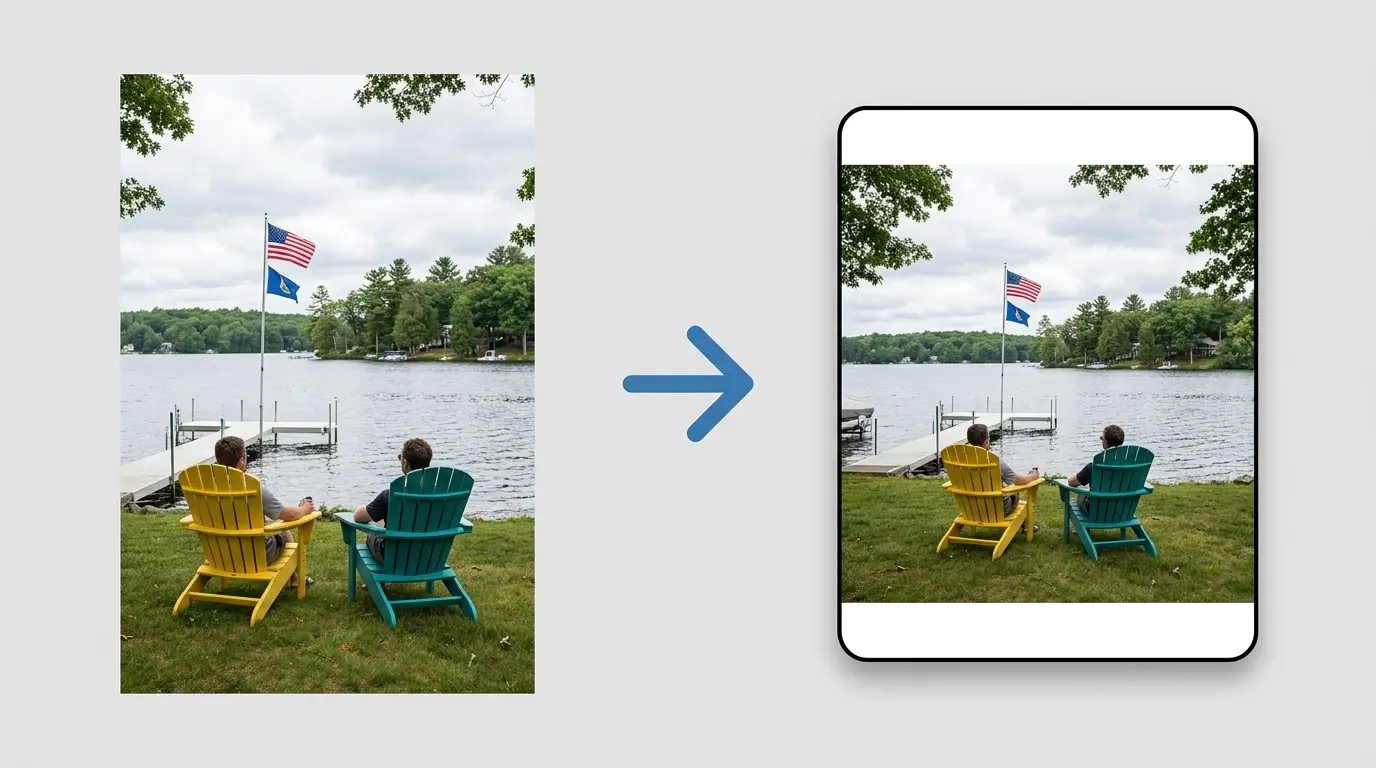
AspectFit is purpose-built for Instagram aspect ratio preparation. Its core function is smart padding: it converts photos from any source ratio to a target Instagram format (4:5, 1:1, or 1.91:1) by adding background fill rather than cropping.
Strengths
- Batch processing: Drop multiple photos at once. Processing runs 4 images in parallel. Output is a ZIP download.
- No-crop padding: White borders, black borders, blurred background, custom color — the full original composition stays intact. How to add borders to Instagram photos walks through each style.
- Watermarking in the same step: Add a logo or enter text, set position and opacity, applied to the full batch. See how to add a watermark to multiple photos at once.
- Instagram presets: 4:5, 1:1, and 1.91:1 presets built in — no manual dimension entry needed.
- Full-resolution output: No free-tier compression. Output quality matches the source.
Limitations
- Instagram-specific — not a general image editor
- No AI features (background removal, upscaling)
- No text overlay or graphic design capability
Best for: Photographers and creators preparing a weekly batch of Instagram posts. Resize + watermark + padding in one operation, no upload. For the dimensions each preset targets, see the Instagram image sizes 2026 guide; for the padding workflow itself, see how to post landscape photos on Instagram without cropping.
Squoosh - best for compression control
URL: squoosh.app
Processing: In-browser (WebAssembly)
Upload required: No
Account required: No
Cost: Free (Google open-source project)
What it does
Squoosh is a compression-focused tool. It supports JPEG, PNG, WEBP, AVIF, and other formats, with granular control over codec settings and quality levels. It includes basic resize functionality.
Strengths
- Fine-grained compression control: Adjust quality at the codec level, compare before/after, hit a specific file size target
- Format conversion: Convert between JPEG, PNG, WEBP, AVIF — useful for reducing Instagram upload size without visible quality loss
- No upload, open source: Code is public and auditable; Google-maintained
Limitations
- Single image only — no batch processing
- Resize is basic (width × height input) — no Instagram presets
- No padding / no-crop functionality
- No watermarking
Best for: Optimizing a specific file for Instagram's 8 MB limit, or converting to WEBP/AVIF for reduced file size.
Photopea - best free Photoshop alternative
URL: photopea.com
Processing: In-browser
Upload required: No (files loaded locally)
Account required: No
Cost: Free (ad-supported); paid plan removes ads
What it does
Photopea is a full Photoshop-equivalent editor running in the browser. It supports layers, masks, filters, and most Photoshop file formats including PSD.
Strengths
- Full editing capability: Layers, adjustments, filters, masks — the complete editing toolkit
- Canvas size control: Manually add padding, set exact dimensions, control background
- PSD import/export: Works with Photoshop files without needing Photoshop installed
- No file upload: Files are loaded into browser memory, not sent to Photopea's servers
Limitations
- Slow for batch work — manual process per image
- Complex for simple resize tasks
- Ad-supported interface
Best for: One-off complex edits where full layer control is needed. Not efficient for batch Instagram preparation.
Birme - best for bulk resize without padding
URL: birme.net
Processing: In-browser
Upload required: No
Account required: No
Cost: Free
What it does
Birme bulk-resizes images to exact dimensions. You set width, height, and crop mode — it processes the full batch and outputs a ZIP.
Strengths
- True batch processing: Drop many files, resize all at once
- Exact dimensions: Enter 1080 × 1350 (or any Instagram target) and every image is resized to exactly those dimensions
- In-browser, no upload
Limitations
- Crops to fit: Birme resizes to exact dimensions, which means it crops photos that don't match the target ratio. There is no padding option.
- No watermarking
- No blurred background fill
Best for: Quickly cropping a batch of photos to a fixed Instagram size when composition preservation is not the priority (screenshots, graphics, template-based content).
Tools that require upload (included for comparison)
Some commonly cited Instagram resize tools require file upload. Listed here for completeness:
| Tool | Upload required | Free tier compression | Notes |
|---|---|---|---|
| Canva | Yes | Yes (lossy) | Powerful design tool; slow for pure resize batches |
| Adobe Express | Yes | No (with account) | Good quality; requires Adobe account |
| Kapwing | Yes | Yes | Adds watermark on free tier |
| ResizeImage.net | Yes | Varies | Simple; files uploaded to server |
| iloveimg.com | Yes | Varies | Batch support; server-side |
For unpublished or sensitive photos, these tools introduce the file-upload risk described above. For general-purpose use where privacy is not the concern, Canva and Adobe Express are capable options — with the caveat that Canva's free tier compresses output.
Full comparison table
| Tool | Batch | No-crop padding | Watermark | No upload | Instagram presets | Cost |
|---|---|---|---|---|---|---|
| AspectFit | ✅ | ✅ | ✅ | ✅ | ✅ | Free |
| Squoosh | ❌ | ❌ | ❌ | ✅ | ❌ | Free |
| Photopea | ❌ | Manual | Manual | ✅ | ❌ | Free (ads) |
| Birme | ✅ | ❌ (crops) | ❌ | ✅ | ❌ | Free |
| Canva (free) | ❌ | Manual | ✅ | ❌ | ✅ | Free (compressed) |
| Canva (Pro) | ❌ | Manual | ✅ | ❌ | ✅ | ~$15/mo |
| Lightroom | ✅ | Via export preset | ✅ | ✅ (local app) | ✅ (custom) | Subscription |
Which tool to use for which job
| Job | Best tool |
|---|---|
| Batch prepare photos for Instagram (resize + pad + watermark) | AspectFit |
| Convert a single photo to WEBP/AVIF to reduce file size | Squoosh |
| Complex one-off edit (masking, layers, retouching) | Photopea |
| Batch hard-crop images to exact dimensions | Birme |
| Design a graphic post with text and brand elements | Canva |
| Full professional editing workflow | Lightroom / Photoshop (local) |
Frequently asked questions
Is there a free tool that does everything in one place? For the Instagram preparation workflow specifically (resize, pad, watermark, batch), AspectFit covers all of it in one step at no cost and without file upload. For more advanced editing (background removal, AI upscaling, graphic design), you'll need additional tools.
Why do some free tools compress my images? Server-side free tools often apply compression to reduce their storage and bandwidth costs. Tools that store your files on their servers need to manage those storage costs — compression is one mechanism. Client-side tools have no storage cost because they don't store your files.
Does using a no-upload tool affect Instagram's own compression? No. Instagram applies compression to all uploads independently of the upload source. The tool you use to prepare the image does not change Instagram's compression behavior. The quality you preserve by avoiding third-party compression is the quality that enters Instagram's own compression step.
Are these tools safe to use on commercially licensed photos? For the in-browser tools (AspectFit, Squoosh, Photopea, Birme), yes — your files never leave your device, so there is no commercial license risk from third-party storage. For upload-based tools, review the tool's terms of service and your license agreement.
What's the best format to upload to Instagram for maximum quality? JPEG at 80–90% quality, RGB color space, 1080 px wide minimum (1080 × 1350 for 4:5, 1080 × 1080 for 1:1). Instagram recompresses all uploads — starting with a high-quality source minimizes the visible degradation from Instagram's compression.