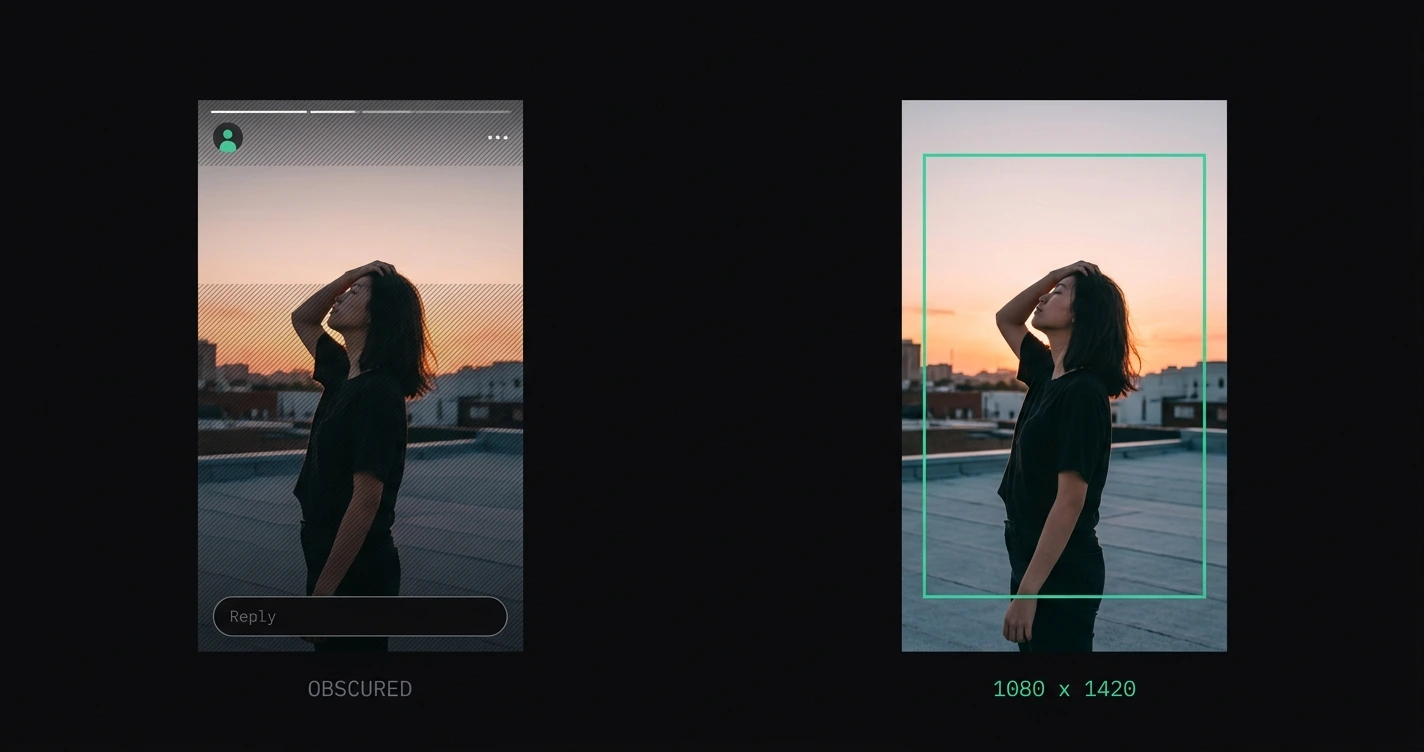
Instagram Stories use a fixed 9:16 format — 1080 × 1920 pixels. That's the only supported dimension. The challenge isn't the overall size; it's the safe zones. Instagram overlays UI elements (the username bar, reaction buttons, swipe-up prompts, and the profile ring) at fixed positions on the canvas, and any content placed in those zones gets obscured or cut off when viewed.
For all other Instagram format dimensions, see every Instagram image size for 2026.
TL;DR: Instagram Story dimensions are 1080 × 1920 (9:16). Keep critical content within the 1080 × 1420 center safe zone (250 px from top, 250 px from bottom). Max file size is 30 MB for photos, 4 GB for video. Use JPEG or PNG for photos, H.264 MP4 for video.
On this page:
- Instagram Story dimensions at a glance
- Safe zones explained
- Safe zone measurements for 2026
- Story safe zone diagram
- File requirements and limits
- Preparing photos for Stories
- Common Story mistakes and how to avoid them
- Frequently asked questions
Instagram Story dimensions at a glance
| Property | Value |
|---|---|
| Canvas size | 1080 × 1920 px |
| Aspect ratio | 9:16 |
| Safe zone (content area) | 1080 × 1420 px (centered) |
| Top clearance | 250 px |
| Bottom clearance | 250 px |
| Photo max file size | 30 MB |
| Video max file size | 4 GB |
| Video max length | 60 seconds |
| Recommended photo format | JPEG or PNG |
| Recommended video format | H.264 MP4 |
| Recommended video bitrate | 3.5 Mbps minimum |
Safe zones explained
Instagram Stories display UI controls at fixed positions across the top and bottom of the screen. These include:
Top of the screen:
- Username and profile photo (top-left)
- Story progress bar
- Mute and close buttons (top-right)
Bottom of the screen:
- Reply / message input
- Reaction emojis
- Share button
- Call-to-action stickers (when added)
Any text, faces, logos, or critical visual elements placed in these zones will be partially or fully obscured when someone views the Story. This is the most common reason Story content looks broken or unprofessional — not incorrect canvas size, but failure to account for UI overlap.
Safe zone measurements for 2026
Standard safe zone
Keep all critical content within this area:
| Boundary | Distance from edge |
|---|---|
| Top | 250 px from top edge |
| Bottom | 250 px from bottom edge |
| Left | 0 px (no standard left margin) |
| Right | 0 px (no standard right margin) |
This gives a 1080 × 1420 px active content area.
Conservative safe zone (for text and logos)
For text overlays, logos, and CTAs — elements where partial obscuring is especially visible — apply additional margin:
| Boundary | Distance from edge |
|---|---|
| Top | 300 px from top edge |
| Bottom | 300 px from bottom edge |
| Left | 60 px from left edge |
| Right | 60 px from right edge |
This gives a 960 × 1320 px safe text/logo area.
Why the bottom zone is stricter
The bottom UI elements are interactive (reply field, reactions). They sit higher on screen than the top elements, making the bottom zone more aggressive. In practice, 300 px clearance from the bottom is safer than 250 px for content you want consistently visible.
Story safe zone diagram
┌─────────────────────────────┐  ← 1080 px wide
│  ⬆ 250–300 px danger zone  │
│   [username] [progress bar]  │
├─────────────────────────────┤  ← safe zone begins
│                              │
│                              │
│   ← 1080 × 1420 px →        │
│     SAFE CONTENT AREA        │
│                              │
│                              │
├─────────────────────────────┤  ← safe zone ends
│  ⬇ 250–300 px danger zone   │
│   [reply] [reactions] [share]│
└─────────────────────────────┘  ← 1920 px tall
Full canvas: 1080 × 1920 px
Safe area (standard): 1080 × 1420 px centered
Safe area (conservative, for text): 960 × 1320 px centered
File requirements and limits
Photos
| Property | Requirement |
|---|---|
| Dimensions | 1080 × 1920 px recommended (9:16) |
| Minimum dimensions | 500 × 889 px |
| Max file size | 30 MB |
| Supported formats | JPEG, PNG |
| Color space | sRGB (CMYK will be converted and colors may shift) |
Video
| Property | Requirement |
|---|---|
| Dimensions | 1080 × 1920 px (9:16) |
| Max duration | 60 seconds per Story segment |
| Max file size | 4 GB |
| Codec | H.264 |
| Container | MP4 or MOV |
| Frame rate | 23–60 fps |
| Minimum video bitrate | 3.5 Mbps |
| Audio | AAC, 44.1 kHz |
What happens if dimensions are wrong
- Photo wider than 9:16: Instagram crops or letterboxes it to fit the Story frame
- Photo taller than 9:16: Instagram scales it down and centers it — black bars appear on sides
- Video outside 9:16: Same scaling behavior as photos, with potential quality loss
Preparing photos for Stories
Most camera photos (3:2, 4:3, 4:5) need to be converted to 9:16 before they display correctly in Stories. Options:
Option 1: Add padding to reach 9:16
Use AspectFit to pad any photo to 9:16 without cropping:
- Open AspectFit in your browser
- Drop in your photo
- Select 9:16 as the target format
- Choose a background style (white, black, blur, or custom color)
- Download
The full photo stays visible, centered in the Story frame with the background filling the remaining area. See how to add borders to Instagram photos for more detail on the padding method.
Option 2: Crop to 9:16 directly
If you want a full-bleed Story with no padding, crop the photo to 9:16 in Lightroom, Snapseed, or any photo editor. Make sure the crop keeps all critical elements within the safe zone.
Option 3: Let Instagram handle it
Instagram's Story editor zooms in on non-9:16 photos to fill the frame. This almost always crops some portion of the image. Use this only if the crop doesn't affect the composition.
Common Story mistakes and how to avoid them
Mistake: Text at the very top or bottom Instagram's UI overlaps the top and bottom 250 px. Text there gets partially covered by the username bar or the reply field. Fix: Keep all text within the safe zone (250 px clearance minimum, 300 px to be safe).
Mistake: Uploading a portrait feed photo (4:5) as a Story A 4:5 photo posted as a Story gets scaled to fit the 9:16 frame with black or white bars — unless you manually expand the canvas first. Fix: Pad to 9:16 with AspectFit before uploading, or use the padding option inside the Stories editor.
Mistake: Uploading a landscape photo to Stories A 3:2 or 16:9 landscape photo gets heavily letterboxed in a Story (large bars on top and bottom) or cropped to an extreme portrait crop. Fix: Use the blurred background padding option — it fills the 9:16 frame with a blurred version of the original, keeping the full landscape shot visible in the center.
Mistake: Using CMYK color space Instagram converts CMYK to sRGB automatically, which can cause color shifts — especially in prints-to-digital workflows. Fix: Export from your editing software in sRGB.
Frequently asked questions
What's the ideal Instagram Story size? 1080 × 1920 pixels at 9:16 aspect ratio. Keep critical content in the center 1080 × 1420 px area (250 px clearance from top and bottom).
Do Instagram Stories support 4K video? Instagram accepts 4K video but compresses it during upload. The actual rendered quality in-app is capped at 1080p. Uploading at 1080 × 1920 is sufficient — there's no visible quality benefit to 4K for Stories.
What's the maximum Story length? 60 seconds per Story segment. Longer videos are automatically split into 60-second segments. As of 2026, Instagram supports video clips up to 3 minutes for Stories in some regions (being rolled out globally).
Why does my Story look blurry? Common cause: the source image is below the minimum resolution (500 × 889), or the file was heavily compressed before uploading. Use the full 1080 × 1920 canvas and upload at a reasonable quality level (JPEG at 85%+).
Can I use the same image for feed posts and Stories? Different aspect ratios make direct reuse complicated. A 4:5 feed post padded to 9:16 works for Stories, but content near the edges of the feed image may land in Story safe zone danger areas. Prepare Story versions separately. For the feed side, see best aspect ratio for Instagram posts in 2026.
Do safe zones change with new Instagram updates? Instagram has adjusted safe zone recommendations after UI changes in 2023 and 2024. The 250 px top/bottom clearance reflects the current 2026 layout. When Instagram changes its Story UI, safe zones may shift — always test with a real post before sending to a large audience.