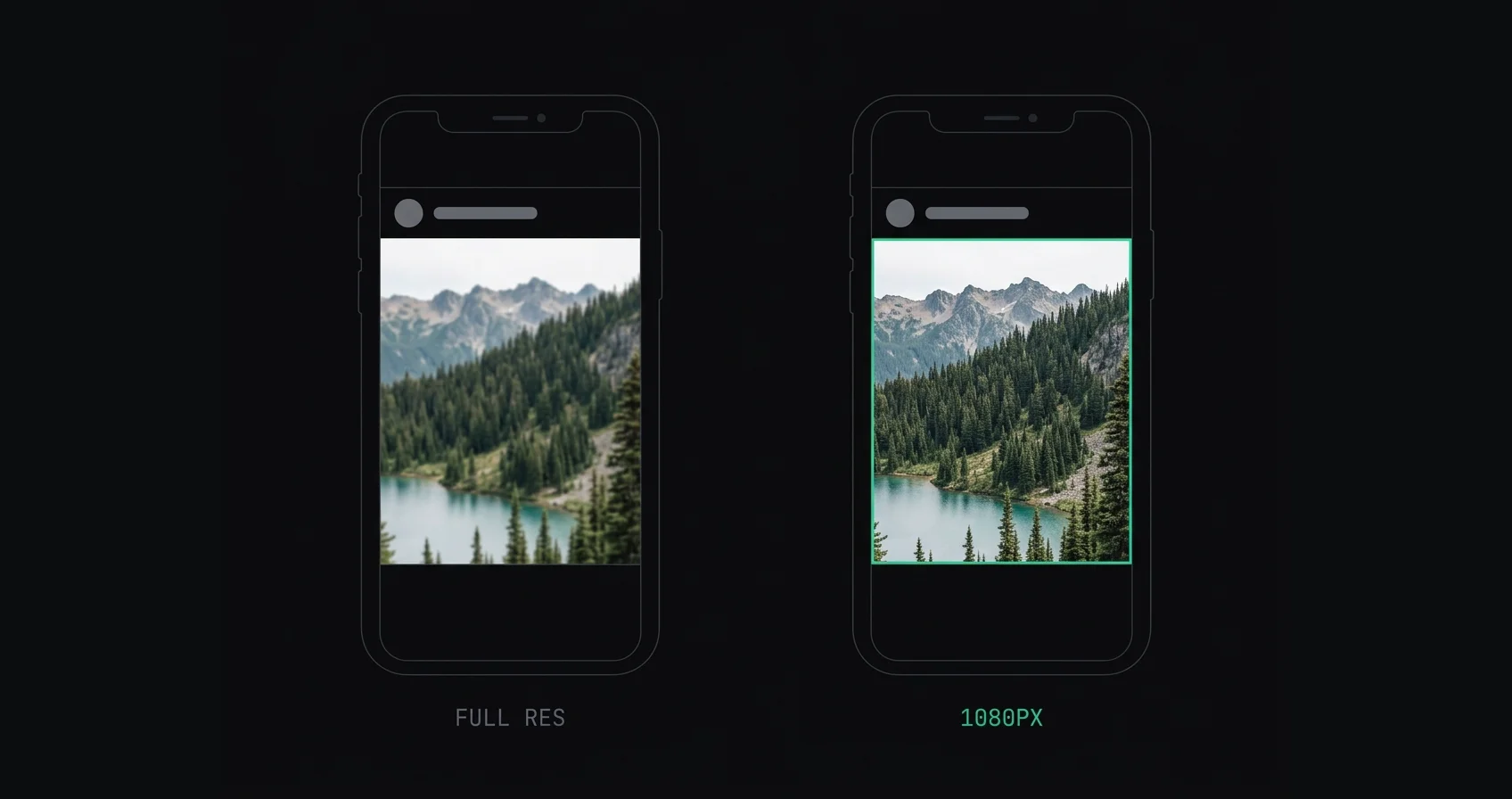
Ask this in any photography forum and you'll get both answers within ten minutes, each delivered with total confidence.
One camp says resize to 1080 pixels wide because that's what Instagram publishes, so anything larger is thrown away. The other says upload the biggest file you have and let Instagram sort it out, because giving the platform more data can only help.
They can't both be right. Here's what's actually going on, including the part where the second camp has a better argument than they're usually given credit for.
TL;DR: Upload at 1080 pixels wide. Instagram publishes feed images at 1080px, so a larger file gets downscaled by Instagram's fast generic resizer and then recompressed — two lossy passes instead of one, and the resize is the one that costs you fine detail. The counter-argument has a narrow version that holds up, covered below.
On this page:
- The short answer
- What "full resolution" actually costs you
- The case for uploading larger, taken seriously
- Where the two camps actually disagree
- What to upload, by situation
- How to resize without adding your own damage
- Frequently asked questions
The short answer
1080 pixels wide, at the height your aspect ratio calls for:
| Ratio | Upload this |
|---|---|
| 4:5 portrait | 1080 × 1350 |
| 3:4 portrait | 1080 × 1440 |
| 1:1 square | 1080 × 1080 |
| 1.91:1 landscape | 1080 × 566 |
The reasoning is short. Instagram displays feed images at 1080px wide. It has done through the 2025 grid changes and it still does in 2026. Anything wider than that has to be resized by Instagram before it can be published, and you have no say in how.
What "full resolution" actually costs you
Say you upload a 6000 × 7500 file straight out of Lightroom. Instagram does this:
- Scales it down to 1080 × 1350 — an 82% reduction in linear dimensions
- Re-encodes the result as a JPEG at its own quality setting, estimated around 70–75
Both steps are lossy. The second happens to everyone and is genuinely not a big deal at phone-screen sizes. The first is optional, and it's the expensive one.
Every downscale softens edges. That's inherent to resampling — you're throwing away most of the pixels and averaging what's left, and fine detail is the first casualty. Which is why every serious photo workflow applies output sharpening after a resize, to claw back the apparent crispness the resample removed.
Instagram doesn't do that. Its resizer is built to process an enormous volume of uploads quickly, not to make your fabric texture sing. There's no sharpening pass on the far side.
So you get a softened image, and then the JPEG encoder runs on it — spending its limited bitrate describing blur rather than describing edges. The two losses compound instead of adding.
Resize it yourself and step one just doesn't happen. You control the resample, you sharpen afterwards the way you'd sharpen any export, and Instagram's encoder receives a crisp 1080px file that it only has to compress.
The case for uploading larger, taken seriously
Most articles wave this away. It deserves better, because people who upload at 2048px and report no problems are not imagining it.
The honest points in its favour:
The size of the jump matters. Going from 2048px to 1080px is a modest downscale that most resamplers handle cleanly. Going from 6000px to 1080px is a brutal one. "Upload full resolution" and "upload slightly larger than 1080" get lumped together in these arguments and they are not the same proposition at all.
Phone screens are forgiving. Most of your audience is looking at a 4-inch-wide image while scrolling. The difference between a well-resized 1080px upload and Instagram's own downscale of a 2048px file is real but small, and it's smallest exactly where most people will see it.
Resizing badly is worse than not resizing. If your resize introduces halos, or you sharpen before scaling, or you export at quality 60, you've hurt the photo more than Instagram's resizer would have. Someone who uploads full-res and gets decent results is often being compared against someone doing the resize badly, not doing it well.
Instagram's target could rise. 1080px has held for years, but screens keep improving. A larger upload isn't future-proof in any meaningful sense — Instagram processes at upload time, not display time — but the instinct behind the argument isn't crazy.
Where it falls down: none of that makes uploading a 6000px file better than uploading a properly prepared 1080px one. The best case for the large-upload camp is that the gap is smaller than purists claim, and that a careless resize can close it. That's a real point. It's not the same as being right.
Where the two camps actually disagree
Strip away the noise and the disagreement is narrower than it looks. Both sides agree Instagram recompresses everything. Both agree 1080px is the publish width.
The actual dispute is about how bad Instagram's resizer is. The resize-first camp assumes it's crude. The upload-big camp assumes it's decent enough that the difference doesn't survive a phone screen.
Nobody has published a controlled test, which is why this argument has run for years without resolving. What isn't in dispute is the direction: resizing yourself can't be worse than letting Instagram do it, provided you do it competently, because you're removing a step rather than adding one. The only question is how much you gain.
That asymmetry is why the recommendation is what it is. The downside of resizing correctly is a minute of effort. The downside of not bothering is an unknown amount of softness you can't undo.
What to upload, by situation
Photos with fine texture — landscapes with foliage, portraits with hair and fabric, street scenes with crowds, architecture with brickwork. Resize to 1080px yourself. This is where the difference is most visible, because high-frequency detail is exactly what a generic downscale destroys.
Photos with smooth content — studio portraits on plain backgrounds, minimal graphics, big areas of flat colour. Honestly, either approach looks fine. There's little fine detail to lose.
Photos already smaller than 1080px wide — upload as-is. Do not upscale to reach 1080. Enlarging invents detail that was never captured and hands the encoder more pixels for nothing.
Carousels — resize every slide to the same dimensions. Instagram forces all slides to the ratio of the first one, so mismatched sizes cause cropping on top of any quality issue. Slide dimensions are in the Instagram image sizes cheat sheet.
Stories and Reels — 1080 × 1920. Same principle, different target.
How to resize without adding your own damage
The advantage of resizing yourself only exists if you do it properly. Three things to get right:
Resize first, sharpen second. Always this order. Sharpening before a resize means the resampler scatters the edge detail you created and scales up any halos you introduced, and Instagram's encoder then reads those halos as detail worth preserving. Get to 1080px, then apply light output sharpening to the final pixels.
Export in sRGB. Instagram maps everything to sRGB on upload. If your file is Adobe RGB or Display P3, that conversion pulls the saturation out and your carefully graded colours land flat.
Don't over-think the JPEG quality slider. 85–95% is the sensible range. At 1080 × 1350 you're dealing with 1.4 megapixels, so the file is small at any reasonable setting and the difference between 90 and 100 won't survive Instagram's own encoder. The pixel dimensions are what matter here; the quality percentage is a rounding error next to them.
AspectFit does this in your browser. Pick your ratio, choose the Instagram-optimised export size, and it renders at 1080 pixels wide — 1080 × 1350 for 4:5, 1080 × 1440 for 3:4, and so on. It won't upscale a photo that's already smaller than 1080px, and it adds no compression of its own, so what Instagram receives is a clean file at exactly its publish width. Nothing is uploaded to a server; the resize happens on your device.
If your photo doesn't fit an Instagram ratio in the first place, it can pad to fit rather than crop, which is a different problem covered in why Instagram crops your photos.
For the full pre-upload sequence, see how to upload the highest quality photos to Instagram.
Frequently asked questions
Should I upload 1080px or full resolution to Instagram?
1080 pixels wide. Instagram publishes feed images at 1080px, so a larger upload gets downscaled by Instagram's own resizer and then recompressed — two lossy steps rather than one. Resizing yourself lets you control the resample and apply sharpening afterwards, which Instagram's pipeline doesn't do.
Does Instagram downscale my photos?
Yes, any upload wider than 1080 pixels. The downscale happens server-side before compression, with no sharpening pass afterwards, which is why oversized uploads often come back looking soft in fine detail.
Is it bad to upload a 4K photo to Instagram?
It won't be rejected, but it's counterproductive. A 4K file guarantees Instagram runs its own downscale before compressing. You get an extra destructive pass and no benefit, since the published image is 1080px wide either way.
What if my photo is smaller than 1080px wide?
Upload it as it is. Upscaling to hit 1080 doesn't add real detail — it interpolates pixels that were never captured — and it gives the compressor a larger file to work through. Instagram will display a sub-1080px image without resizing it.
Do I need to resize for Stories too?
Stories target 1080 × 1920. The same logic applies: matching the target width means the platform doesn't resize before compressing.
Will Instagram ever publish at higher than 1080px?
It hasn't so far, through several rounds of feed and grid changes including the 2025 move to a 3:4 grid. If it changes, uploading large today wouldn't help anyway — Instagram processes and stores your image at upload time, so it's the width at the moment you post that decides what gets published.
Summary
Upload at 1080 pixels wide. Instagram publishes at that width, and anything larger means the platform resizes your photo with a fast generic resampler and no sharpening pass, then compresses the softened result.
The people arguing for larger uploads aren't inventing their results — the gap is smaller than purists claim, especially at modest sizes like 2048px, and a sloppy resize can erase it entirely. But a competent resize can't do worse than handing the job to Instagram, because you're removing a step instead of adding one.
AspectFit renders at 1080px wide for whichever Instagram ratio you pick, in-browser, with no upload and no account.