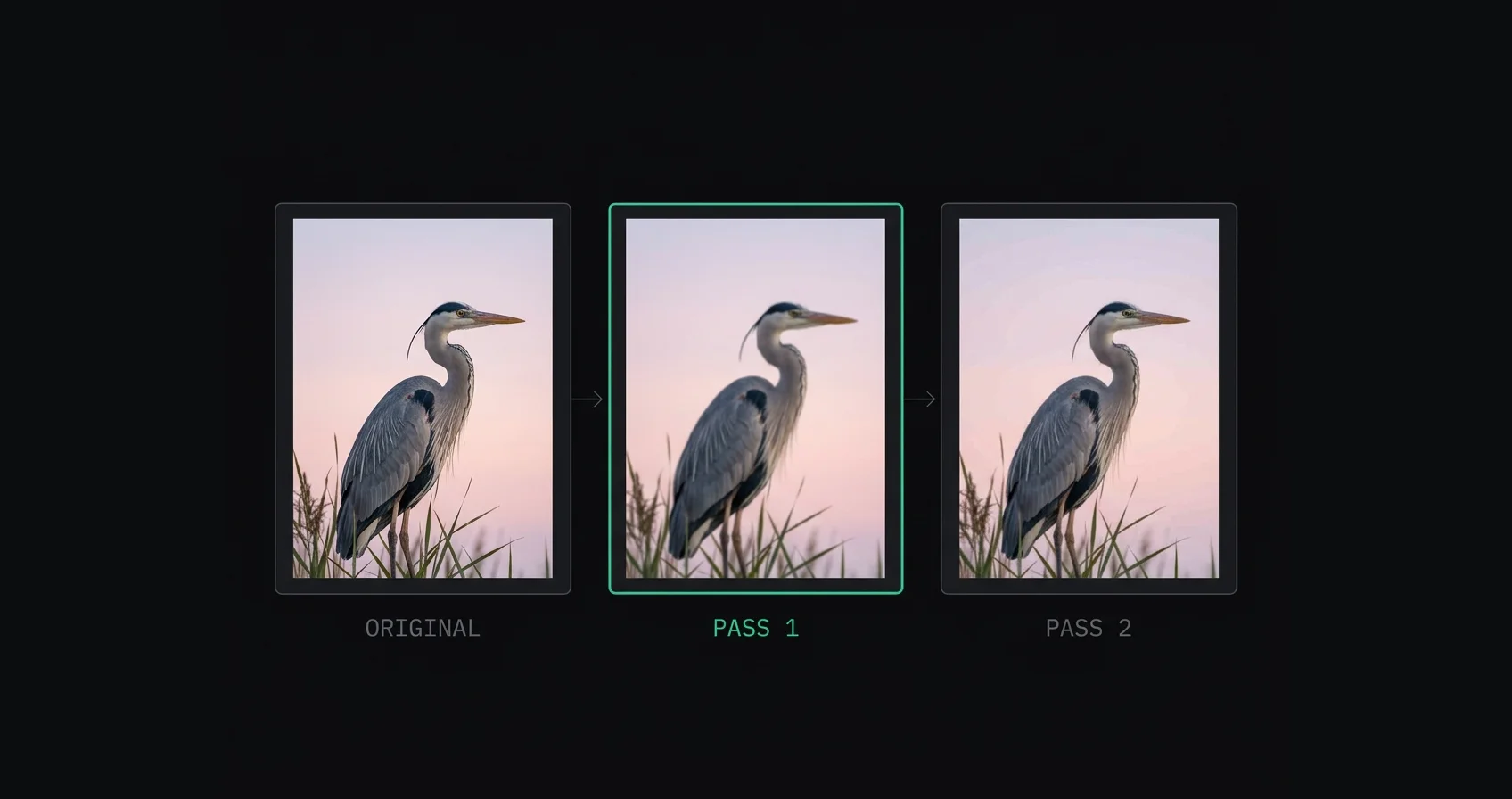
You edited the shot on a proper screen. It looked immaculate. You posted it, opened the app, and it looks like someone breathed on it.
The usual explanation is "Instagram compresses everything," which is true and almost useless. Compression alone doesn't produce the specific kind of mush people complain about. Something more particular is happening to your file, and a good chunk of it depends on what you handed over.
TL;DR: Instagram recompresses every upload to roughly JPEG quality 70–75, which is survivable. The damage people actually notice comes from the step before it — if your file is wider than 1080px, Instagram downscales it first with a fast generic resampler and no sharpening pass, then compresses the softened result. Two lossy passes instead of one.
On this page:
- What Instagram does to your file
- Why the downscale hurts more than the compression
- Which part is Instagram's fault and which is yours
- The four ways photos get wrecked
- The settings that fix it
- How to tell which problem you have
- Frequently asked questions
What Instagram does to your file
When you hit share, your photo goes through a fixed sequence server-side:
- Colour conversion. Whatever profile your file carries gets mapped to sRGB.
- Resize, if needed. Anything wider than 1080 pixels gets scaled down to 1080.
- Recompression. The result is re-encoded as a JPEG at Instagram's own quality setting, widely estimated around 70–75.
- Variant generation. Smaller copies get made for the grid thumbnail and other surfaces.
Steps 1, 3 and 4 happen to everyone. There's no toggle, no account tier, no third-party app that skips them.
Step 2 is conditional. It only happens if you gave Instagram more pixels than it publishes.
Why the downscale hurts more than the compression
This is the part the thin listicles get wrong. They treat "compression" as one undifferentiated villain. But the two steps damage your photo in completely different ways, and they're not equally bad.
Recompression at quality 70–75 is fine. That sounds low if you're used to exporting at 90+, but JPEG quality numbers aren't linear and they aren't comparable across encoders. At 1080 × 1350 on a phone screen held at arm's length, a well-prepared image recompressed to 70–75 looks essentially like the original. This step is not your problem.
The downscale is where detail dies. Instagram is resampling billions of images a day, so its resizer is tuned for throughput. It's a generic downsample with no sharpening pass afterwards, which matters because every downscale softens edges — that's inherent to resampling, not a flaw. Professional workflows always follow a resize with output sharpening for exactly this reason. Instagram doesn't.
So your fine texture goes soft: fabric weave, foliage, hair, brick, distant architecture, anything with high-frequency detail. And then the compressor runs on that softened image and has to allocate its bits to describing blur instead of describing edges.
That's the compounding effect. Not two independent losses, but one loss feeding the other.
Which part is Instagram's fault and which is yours
Worth being blunt about the split, because it decides what you can actually do:
| What happens | Whose call | Can you avoid it |
|---|---|---|
| Recompression to ~q70–75 | Instagram's | No |
| sRGB conversion | Instagram's | No, but you can control the input |
| Downscale from your size to 1080px | Yours | Yes — upload at 1080px |
| Colour shift from a wide-gamut file | Yours | Yes — export sRGB |
| Halos and crunchy edges | Yours | Yes — sharpen less, and after resizing |
| Re-encode from sending via a chat app | Yours | Yes — AirDrop or cable |
Four of the six are yours. That's the uncomfortable finding, and it's also the good news, because you can't negotiate with Instagram's encoder but you can absolutely change what you feed it.
The four ways photos get wrecked
Different complaints, different causes. Match your symptom.
Soft and mushy, especially in fine detail
The classic. Textures that were crisp in your editor turn to porridge — grass, fur, fabric, crowd scenes.
Cause: you uploaded well over 1080px wide and Instagram's resizer did the downscale.
Fix: export at exactly 1080px wide before uploading.
Flat, dull, or slightly grey colours
Reds lose their bite, skin tones go sallow, the whole frame reads a stop flatter than it did on your monitor.
Cause: you exported in Adobe RGB, ProPhoto RGB, or Display P3. Instagram maps it to sRGB and the conversion pulls saturation out. Mac laptop and recent iPhone users hit this hardest because those screens are P3, so everything looks perfect right up until it's published.
Fix: set colour space to sRGB in your export dialog.
Blocky patches in skies and gradients
Smooth tonal areas break into visible steps or blotches.
Cause: gradients are the hardest thing for a JPEG encoder to store cheaply, and they're what gets sacrificed first at lower quality settings. Heavy sharpening makes it worse by adding noise the encoder then tries to preserve.
Fix: sharpen less, and don't stack sharpening passes. Some of this is unavoidable at Instagram's quality level.
Crunchy white fringes on hard edges
Rooflines, horizons and window frames get a pale outline.
Cause: over-sharpening, usually stacked — in-camera sharpening, plus output sharpening on export, plus a nudge of Instagram's in-app slider. Or sharpening applied before a resize, which scales the halos up.
Fix: sharpen once, after resizing, lightly. More on the order in the upload quality guide.
The settings that fix it
Short version, in the order they matter:
Resize to 1080 pixels wide. 1080 × 1350 for 4:5, 1080 × 1440 for 3:4, 1080 × 1080 for square. This one step removes an entire lossy pass and it's worth more than everything else here combined. Don't upscale a smaller photo to reach it — that adds nothing real and gives the compressor more to do. If you're unconvinced, the argument for and against is in 1080px or full resolution.
Export in sRGB. Non-negotiable if you edit on a wide-gamut display.
Export as JPEG at 85–95%. Once you're at 1080px this barely matters, since a 1.4-megapixel file is small at any sane quality setting. Just don't go below 80 and stack your own artifacts onto Instagram's.
Sharpen after the resize, not before, and use less than feels right. Anything you bake in gets amplified by compression, not smoothed by it.
Turn on high quality uploads in Instagram's settings, under Data usage and media quality. The menu path shifts between app versions, so search the settings screen for "quality" rather than following a fixed route. It's free to enable. The clearest documented effect is on video, and it won't undo a bad upload size.
Get the file to your phone without a re-encode. AirDrop or a cable. Sending yourself a photo through a messaging app usually recompresses it, adding a whole extra lossy generation before Instagram even sees it.
If your photo doesn't fit one of Instagram's accepted ratios, you have a second and separate problem — the platform will crop it. That mechanism is covered in why Instagram crops your photos, and between the two articles you've got both halves of "Instagram wrecked my photo."
You can control the resize yourself instead of letting Instagram do it. AspectFit resizes to 1080px wide and pads to whichever ratio you need, entirely in your browser — your photo never goes to a server.
How to tell which problem you have
A quick diagnostic. Download your own published post from the app and open it next to your export at 100%.
If the published version is the same overall colour but softer in the detail, that's the downscale. Check what pixel width you uploaded.
If it's equally sharp but the colours sit differently, that's the profile conversion. Check your export colour space.
If it's sharper than your original in a bad way, with outlines on high-contrast edges, you over-sharpened.
If skies look stepped but everything else is fine, that's the encoder hitting gradients, and it's mostly not something you caused.
Frequently asked questions
Why does Instagram ruin my photo quality?
Instagram recompresses every upload to roughly JPEG quality 70–75, and if your file is wider than 1080 pixels it downscales it first. The downscale is what causes most visible softness, because Instagram's resizer runs no sharpening pass afterwards and the compressor then works on an already-softened image. Uploading at exactly 1080px wide removes that step.
Does Instagram compress photos even if they're the right size?
Yes. Recompression happens to every upload regardless of dimensions and can't be disabled. But a correctly sized file only gets that one pass, and at 1080 × 1350 on a phone the result is close to indistinguishable from the original.
Why do my photos look worse on Instagram than on my phone's gallery?
Your gallery shows the original file. Instagram shows a recompressed copy, and if you uploaded an oversized image, a downscaled-then-recompressed copy. The gap is widest for photos with lots of fine texture.
How do I stop Instagram from compressing my photos?
You can't stop the compression. You can stop the downscale, which is the part doing the visible damage — export at 1080 pixels wide in sRGB before uploading, and Instagram has nothing to resize.
Why do my colours look washed out after posting?
Almost certainly a colour profile mismatch. If you exported in Adobe RGB, ProPhoto RGB or Display P3, Instagram remaps it to sRGB on upload and saturation drops in the process. Export in sRGB instead and the colours you approved are the colours that publish.
Does uploading a bigger file give Instagram more to work with?
No, the opposite. A bigger file guarantees Instagram runs its own downscale before compressing, which is the extra lossy step you want to avoid. Sending more pixels doesn't buy you better output — it buys you an additional destructive pass.
Summary
Instagram's compression is fixed and gentler than its reputation. The damage people actually see comes from the downscale that happens first, and that step only runs because the upload was bigger than 1080 pixels wide.
Export at 1080px wide in sRGB, sharpen after resizing rather than before, and move the file to your phone without a messaging app touching it. Instagram still recompresses — once, lightly, on an image that was already the right shape and size.
AspectFit does the resize and the ratio padding in-browser, with no upload and no account.